
G-code guide
G-code Robot Arm: Running CNC Paths on the AR4
G-code is the language of CNC machines and 3D printers. A robot arm that reads it can follow paths from CAD and graphics software instead of taught points. Here is how G-code works on the AR4, and its limits.
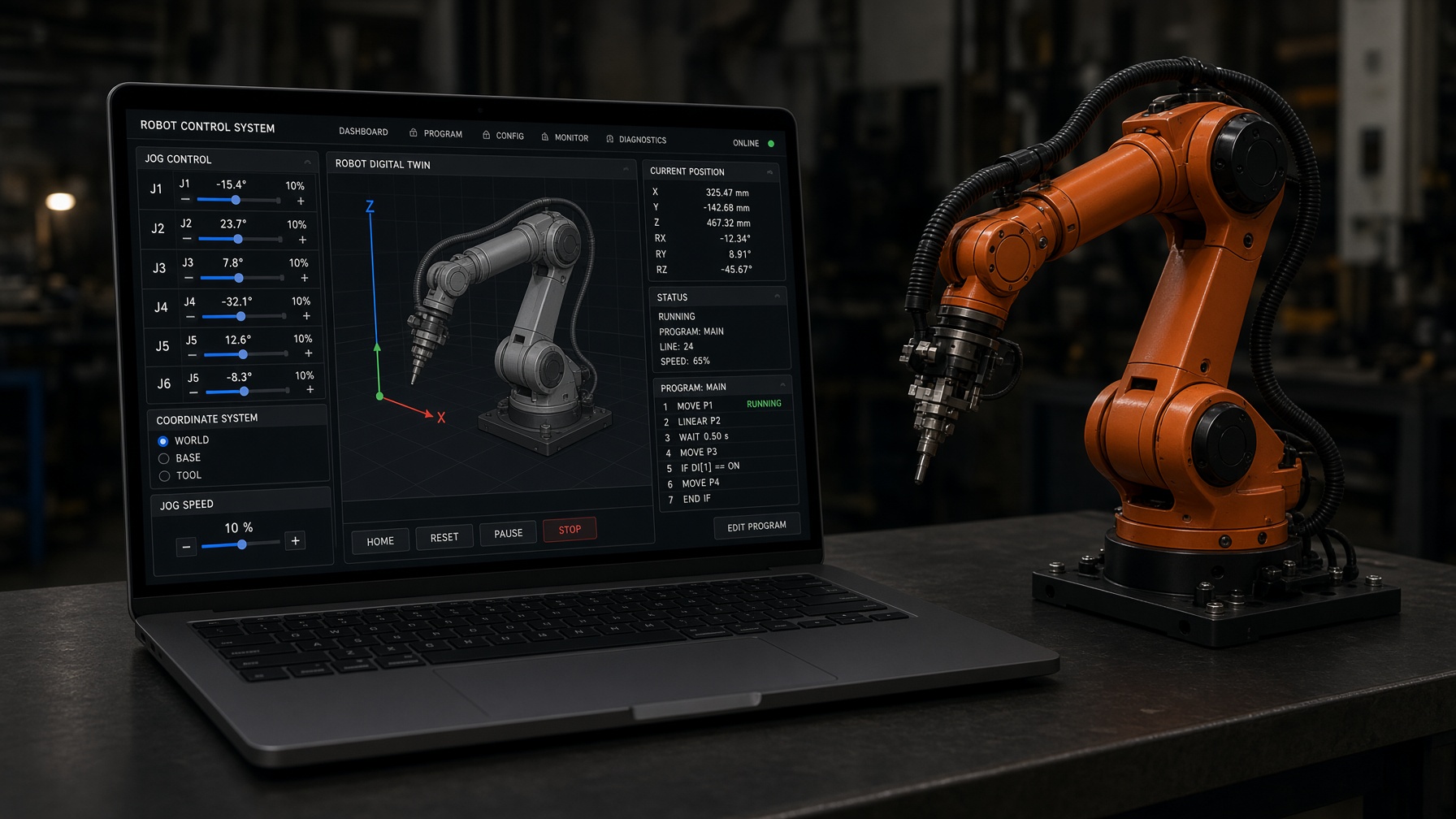
In the HMI
The AR4 HMI's G-Code tab loads a file, converts it to robot moves and uploads it to the controller's SD card to run. The G-code tutorial notes that running from the SD card significantly improves execution speed.
Moves
G0, G1
Units
G20, G21
Runs from
SD card
Files
.gcode .nc .ngc .tap
How G-code runs on the AR4
- Step 1Make the pathCreate G-code from CAM software or convert an SVG drawing to G-code. Keep it to straight line moves.
- Step 2Load the programOpen the G-Code tab and load the file. Comments after a semicolon are stripped.
- Step 3Set the start positionJog the tool to the work origin with the orientation you want, then press Set Start Position. Program coordinates are measured from here.
- Step 4Add an offsetUse a start offset to lift the tool above the work and Move to Start Offset to check it.
- Step 5Convert and uploadName the program and press Convert & Upload to SD. The HMI converts each line to a robot move and stores it on the controller.
- Step 6PlayPress Play Gcode File. Stay at the E-stop for the first run.
Supported commands
| G0, G1 | Straight line moves to X, Y, Z |
|---|---|
| G20, G21 | Inches or millimeters |
| G90, G91, G28 | Treated as absolute from the start position; moves to the start offset |
| F | Feed rate, converted from per minute to per second |
| E | Drives the 7th axis (J7) if fitted |
| Tool orientation | Held at the start position for the whole program |
Example: a 40 mm square
G21          ; millimeters
G90          ; absolute (the AR4 runs relative to your start position)
G0 X0 Y0     ; travel
G1 X40 Y0 F600   ; draw at 600 mm/min
G1 X40 Y40
G1 X0 Y40
G1 X0 Y0
Good uses, and limits
- Drawing and pen plotting from SVG designs.
- Dispensing glue or sealant along a path.
- Light marking or engraving with a small tool, within the arm's 1.9 kg payload.
- Following a path while a 7th axis moves.
The AR4 is not a milling machine. It is a light duty arm with 0.25 mm repeatability and 100 mm/s maximum linear speed, so it is not suited to cutting forces. G-code mode is not available in offline programming mode; it needs the real controller.
Kit plus motors
$1,928
Combo kit $1,229 + StepperOnline motor package $699. Grippers and printed covers are extra.
Keep reading
FAQ
Can a 6 axis robot arm run G-code?
Yes. The AR4 HMI has a G-Code tab that loads a G-code file, converts it to robot moves and uploads it to the controller's SD card to run. It is basic 3 axis Cartesian G-code: X, Y and Z positions with the tool orientation held constant.
Which G-code commands does the AR4 support?
The HMI handles G0 and G1 moves, G20 and G21 units, G90, G91 and G28 (positions are taken as absolute from your start position), and F feed rates. An E value can drive a 7th axis.
Which file types can I load?
The HMI's file dialog accepts .gcode, .nc, .ngc, .cnc, .tap and .txt files.
Does it support arcs (G2 and G3)?
The G-code converter in the HMI source handles G0 and G1 straight moves. Export your design as line segments; most CAM and SVG to G-code tools can do this.
What is G-code on a robot arm good for?
Drawing, light engraving or marking, dispensing and other tool path tasks that come from CAD or graphics software instead of being taught point by point.